
The following instructions may help you manage your appointments.
Help New Booking
Booking Instructions Help and Frequently Asked Questions (FAQs)

Booking a New Road Test Appointment
If you are an eligible driver’s licence applicant, you may book one appointment at a time using DriveTest’s online road test booking system. If you are using a computer or mobile device reliably connected to the Internet, booking a new appointment normally takes about 5 minutes. For further road test booking assistance, please refer to our booking FAQs, visit a DriveTest Cntre, or call our telephone road test booking line.
To book a road test appointment online:
- Gather the items you will need to book the test:
• An email address – This website may not support multiple bookings from different driver’s licences using the same email address.
• A valid driver’s licence number and driver’s licence expiry date.
• A valid credit card – We accept VISA, MasterCard, VISA Debit, and Mastercard Debit only.
Please note, if you have taken a government-approved Beginner Driver Education course, you can book an expedited road test (e.g., with 8 months of experience instead of 12 months) once your driving school has entered your successful training results into the appropriate Ministry of Transportation (MTO) systems.
Ensure your computer is set up for a successful booking:
- • Ensure your email inbox can accept the verification and confirmation messages.
- • For privacy and security reasons, use an up-to-date web browser. Recent versions of Chrome, Firefox, Microsoft Edge, and Safari browsers are preferred. If you have problems with online booking, you may want to configure your browser settings. Note: Internet Explorer is not compatible with the online road test booking system.
- • Connect to a printer if you would like to print a receipt or confirmation after you have booked.
- On the Book a Road Test page, click the green “Book a Road Test” button to start your booking session. You have 45 minutes to complete your booking.
The Book a Road Test Online screen appears. You’ll need to create an account and verify your email address to access the booking system.
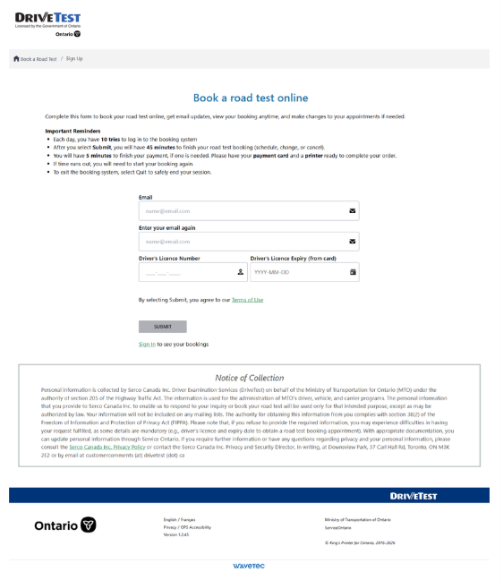
Note: Users have 10 attempts to log in to the booking system each day. Once this limit is met, applicants are blocked from the system for one (1) day.
- Enter your email address in the “Email” and the “Enter your email again” fields. Add your driver’s licence number and expiry date (YYYY-MM-DD) in the respective fields. Click the “Submit” button. Please ensure you are entering the expiry date from your permanent driver’s licence card.
One of two things will happen after you click the “Submit” button:
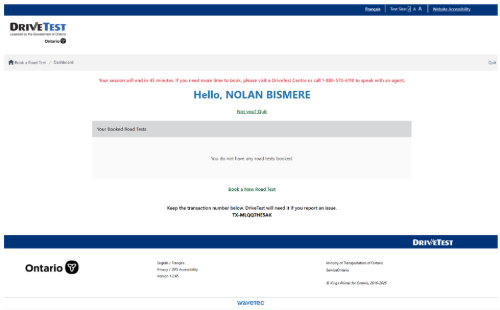
• If you have booked a test (or started to book a test) previously, you will see a “Hello, <Your Name>” screen.
• If you have not booked a test before, if you used a different driver’s licence number for your last booking, or if you are using a different email address than last time, you must verify your email address. After clicking “Submit”, you will see the following screen:
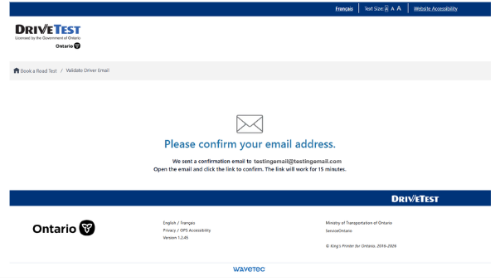
The online booking system will send an email message immediately to the email address you just provided.
- COMPLETE THIS STEP ONLY IF PROMPTED; OTHERWISE, SKIP TO STEP 5.
If prompted to verify your email address, check your email inbox for an email from [email protected]. Open the email and select the “Verify Email” button.
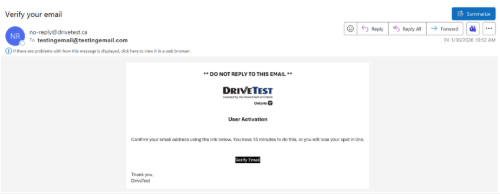
If you do not receive this email, check your junk mail folder for the email. If you are still unable to find the email, call our telephone road test booking line.
After verifying your email, a new tab will open in your browser (or a new browser window will open), and the DriveTest road test booking sign-in screen will appear.

Re-enter your Driver’s Licence Number and Driver’s Licence Expiry date in the appropriate fields and click the “Submit” button. The “Hello” screen, with your name, will then appear.
- On the “Hello, <Your Name>” screen, select “Book a New Road Test”.
Select the type of road test you would like to book. (For a description of licence types, please visit the Licences Overview page.) Once you have selected a test type, click the “Continue” button to proceed.
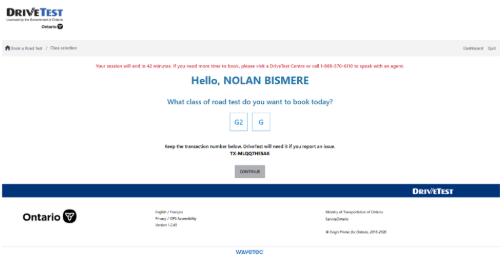
Please note, if you have selected a commercial test (if applicable and eligible), you may be asked whether you want to be examined for the air brake (Z) endorsement at the same time. If you want to complete the air brake endorsement as part of the same test, click the checkbox provided.

A new option appears in the top right of the booking screen: “Dashboard”. Clicking Dashboard will bring up a list of appointments you have already booked so that you can print or confirm the details, modify or reschedule the appointment at least 48 hours prior to the appointment, or cancel the road test. Note: If you wish to end your session, select “Quit”.
- After selecting a licence class/test type, a location map will appear which will allow you to select a DriveTest location to take your road test. Using the scroll bar on the right side of the screen, browse the list of DriveTest locations that offer the class of test you would like to take. If you prefer, you can also click a navy-blue pin on the map to select a location (once selected, the location name and address will be highlighted in blue in the list on the right). Note: To filter the list of locations to DriveTest Centres offering French road tests, check the box, “I want to take my road test in French”. Once you have selected a location, select the Continue button to choose a date for your test.
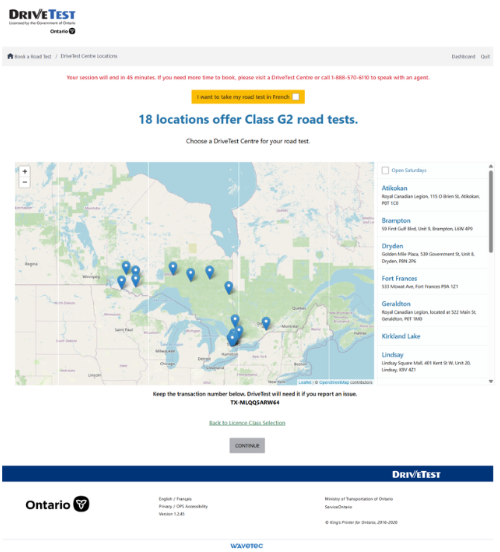
If you wish to book a road test conducted in French, please ensure you select the “I want to take my road test in French” box.

- After you select a location, a calendar for that location will appear. White date boxes indicate available tests, while grey date boxes indicate no availability.
Select a date box to choose a date and then select ‘Continue” to see the open timeslots on that day.
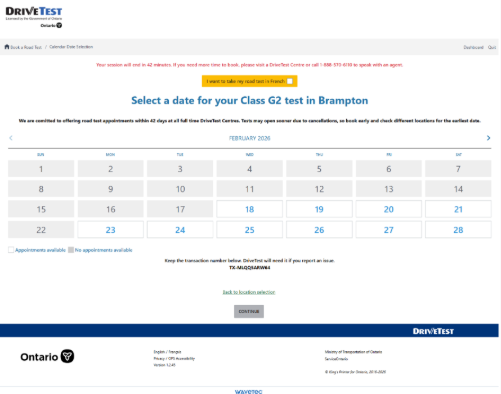
After a few seconds, the available appointment list will appear.
Please note that, if you have taken a government-approved Beginner Driver Education course, you can book an expedited road test (e.g., with 8 months of experience instead of 12 months) only if your driving school has entered your successful training results into the appropriate MTO systems.
Motorcycle road tests are conducted from May to October each year, weather permitting. Timeslots for motorcycle road tests become available for booking approximately one month (e.g., in April) prior to motorcycle road test season.
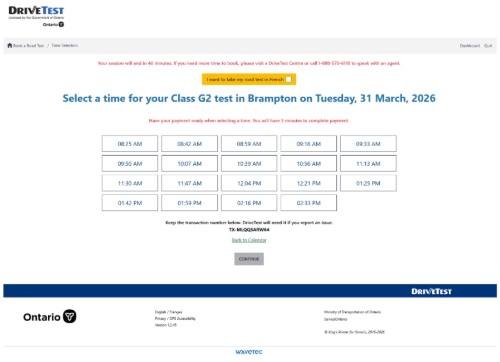
- Select the desired appointment timeslot. Once selected, the time box should turn blue. Select “Continue”.
If none of the available timeslots suit you, select the “Back to Calendar” and select “Back to location selection” link to navigate back to the locations screen to choose a different date or DriveTest Centre.
Once you have selected a timeslot, a CAPTCHA security test will appear. Complete the test to confirm you are human which will allow you to book an appointment.
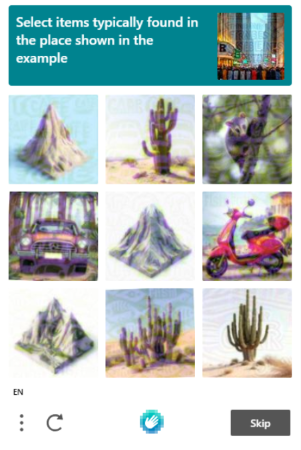
After completing the CAPTCHA test, you will have one of two options:
- IF YOU HAVE A PAYMENT ON FILE:
- • Check the “I have read and agree to the Terms and Conditions” button and then select “Book”. Skip ahead to Step 12.
- IF PAYMENT IS REQUIRED:
- • Have your credit card ready when selecting your appointment timeslot as you will have a limited time to complete payment.
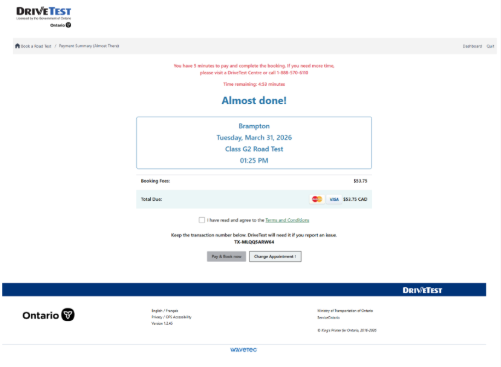
- If payment is required, a summary of your road test booking will appear. This is NOT a confirmation that you are booked; this is for your review only.
Review the booking summary (almost done!) and decide how you would like to proceed:
• If you want to change the location, date, or time, select the “Change Appointment” button. Doing so will return you to the previous screen. Navigate back to the calendar or location selection map.
• If you are satisfied with the location, date, and time, review the terms and conditions and select the check box. Then select the “Pay & Book Now” button.
- Complete all the fields by first selecting the card type from the dropdown menu. Enter the name as it appears on your card, the card number, expiry date and CVV number. Then complete the name, phone number, and address as it appears with your banking institution. Once finished, select “Submit”.
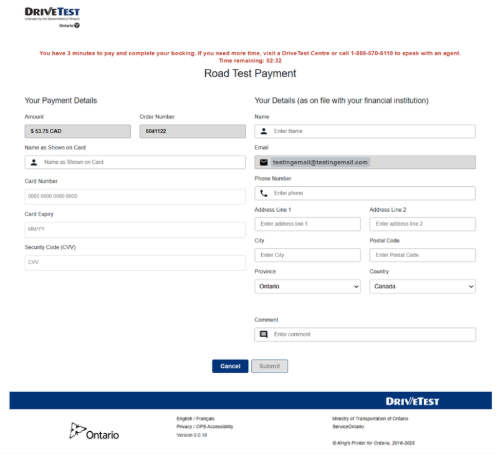
A pop-up message will appear. Select “Ok” to indicate you wish to submit payment and proceed.
- The payment screen will change to “Your road test is booked!” if your credit card was charged successfully.
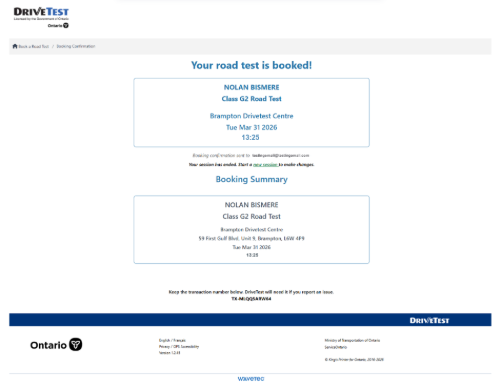
The online road test booking system also automatically sends you two confirmation emails – one for the payment and one for the appointment. If you have already prepaid, you will receive only one confirmation email.
- Congratulations, you are booked! Print a receipt or confirmation, if desired. (If you have already prepaid, you will receive only one confirmation email.)
Please note that a printed copy of your booking confirmation is not required for check-in at the DriveTest Centre on the day of your road test — if needed, you can show the DriveTest Centre agent details of the confirmation from your mobile device/phone.
If you would like to print a copy of the confirmation later, you can access the “Dashboard” to print a new summary. Please refer to your “Drivetest.ca receipt for transaction” email for proof of payment receipt.

