
The following instructions may help you manage your appointments.
Help Edit Booking
Booking Instructions Help and Frequently Asked Questions (FAQs)

Rescheduling (Cancelling) a Road Test Appointment
Using the online road test booking system on Drivetest.ca, you can change and print details for appointments that were booked on the phone, in person at a DriveTest Centre, or through this DriveTest.ca website. All you need is your driver’s licence number and expiry date.
Please note that you will lose your fee if you cancel or change/reschedules within 48 hours of your appointment. You must give DriveTest at least 48 hours notice prior to your scheduled appointment time to avoid forfeiting your road test fee.
Please note that you cannot modify the licence class for your road test without booking a brand new appointment and paying the associated test fee.
Once your driver’s licence has expired, you cannot modify or change an existing appointment, nor can you schedule any further appointments.
To reschedule a test or print appointment details,
- Log in to your Dashboard to view your booked tests. See the “Booking a New Road Test” page for details on how to login.
- A Dashboard of all your previously booked tests, whether they were booked over the phone, at a DriveTest Centre, or using this website, will appear.
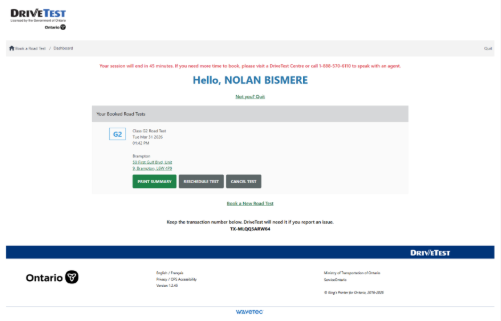
- If you would like to print your appointment details, select “Print Summary” then select “Quit” (in the top right) and ignore the steps below.
OR
If you would like to change the location, date, or time, select the “Reschedule Test” button for the test you wish to change.The Reschedule Test confirmation window appears. Select the “Reschedule Test” button to verify that you want to change aspects of your appointment.
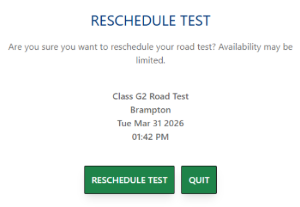
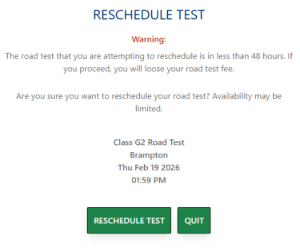
Please note if you are rescheduling (cancelling) within 48 hours of your scheduled road test, you will forfeit your prepaid test fee. A new payment will be required to complete your booking.
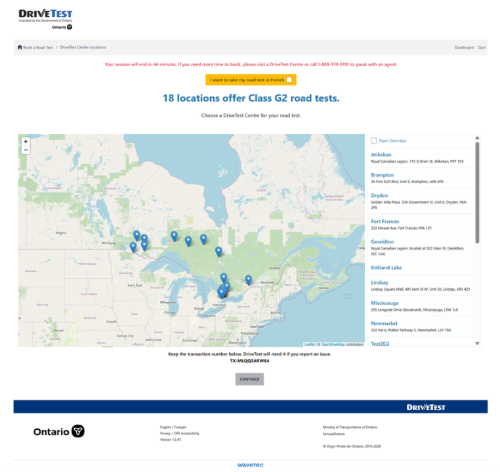
The DriveTest Centre Locations screen appears. The system assumes that you want to be tested on the same type of licence class and shows all the locations that offer that type of road test.
- In the DriveTest Centre Locations screen, choose the same or a new location by selecting an option in the list on the right of the screen. Once your preferred location appears in blue on the right of the screen, click the “Continue” button.
- After you select a location, a calendar for that location will appear. White date boxes indicate there are openings on that day. Grey date boxes indicate that there are no free timeslots on that day at that location. Select a a white box to choose a date and then select “Continue”.
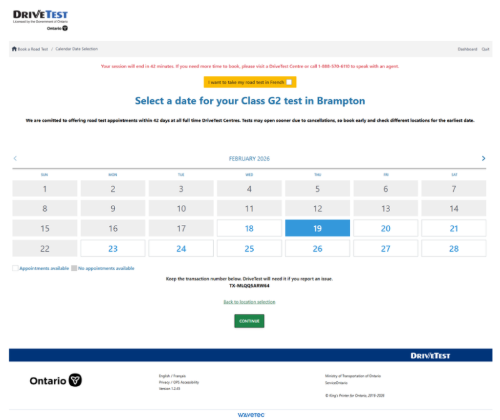
The available appointment time list loads and appears.
- Click on the desired appointment timeslot. Once selected, the timeslot should turn blue.
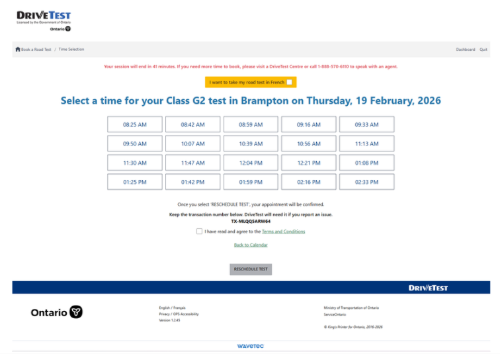
Review the terms and conditions and check the box, and then select the “Reschedule Test” button. Complete the CAPTCHA test to confirm you are human.
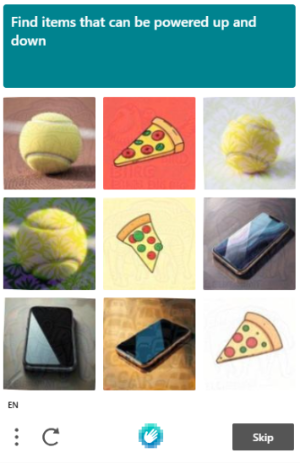
- Once the CAPTCHA test is completed, the “Your road test is booked!” confirmation screen will appear.
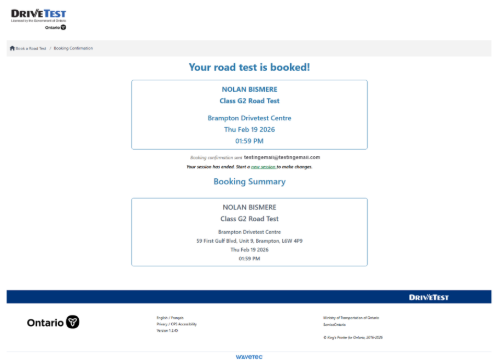
The online road test booking system also will automatically send you an appointment confirmation email.
- Print a confirmation, if desired. Please note that a printed copy of your booking confirmation is not required for check-in at the DriveTest Centre on the day of your road test — you can show details of the confirmation from your mobile device/phone to the DriveTest agent.

